
How to Make Your iPhone Louder (Without Breaking Anything)
Start with Late Night EQ — it’s not really an EQ
Settings → Music → EQ → Late Night.
Everything else in that list is a tone shape: Bass Booster, Treble Reduction, Vocal Booster. Late Night is different. It’s a dynamic range compressor wearing an equalizer’s clothes.
Instead of lifting a frequency band, it narrows the distance between the quietest and loudest moments in a track. Whispered dialogue and quiet verses come up toward the level of the choruses. Peak level doesn’t change — but average level does, and average level is what your ears register as “loud”.
This is why it beats every other setting here. A track’s peaks were already hitting maximum; the quiet 80% of it wasn’t. Late Night fixes the 80%.
The trade-off is honest: you lose some dynamics. A well-recorded orchestral piece will feel flatter. For podcasts, audiobooks, films and listening on a bus, that’s a trade worth making — which is exactly what the name suggests.
Turn off Sound Check
Settings → Music → Sound Check.
Sound Check evens out loudness between tracks so an album doesn’t lurch. It does that by turning the loud ones down toward the average. It never turns quiet ones up.
So with it on, your maximum possible playback level is lower than the hardware can do. Turn it off and loud tracks play at their real level again. You’ll get bigger jumps between songs — that’s the thing you’re trading away.
Check for a Volume Limit
Also in Settings → Music. If a Volume Limit was ever set — by you years ago, by a previous owner, by someone who had the phone for a while — nothing above it will play, however far you push the slider. Worth thirty seconds to rule out.
Clean the speaker grille
The bottom grille collects pocket lint, gradually enough that you adapt to the decline without noticing it. A packed grille is one of the most common reasons an iPhone is quieter than it was a year ago.
Use a soft, dry brush. Not a pin, not compressed air — Apple advises against both and you can push debris further in.
Quick confirmation that sound is escaping properly: play something and cup your hand around the bottom edge. If it jumps noticeably, the path is clear.
Move the phone — this is worth more than people think
Phone speakers fire out of the bottom edge, sideways, into whatever is nearest.
- Hard surface, speaker facing you. A wooden table reflects sound back into the room. A duvet absorbs it. Same phone, clearly different result.
- Cup your hand behind the speaker. A rigid curved surface behind the output redirects sound that was heading away from you. It’s free and immediate.
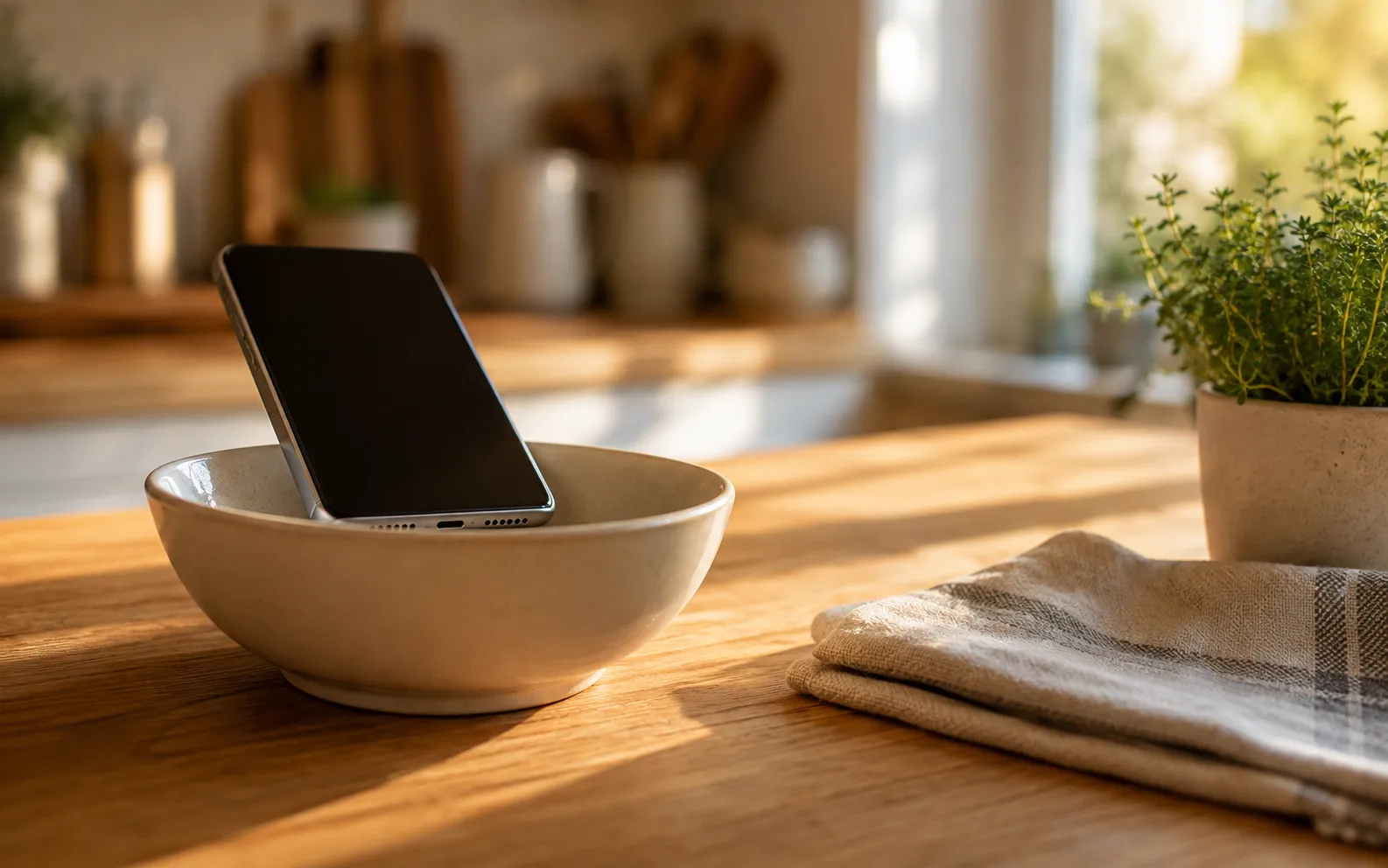
- The bowl trick works. Standing the phone in a glass, mug or ceramic bowl reflects dispersing sound forward and adds a little resonance from the enclosed air. Expect a few decibels of perceived gain — noticeable, not transformative. Rigid materials beat soft ones.
None of this is folklore; it’s the same reason a speaker cabinet exists.
If you’re on headphones
Settings → Sounds & Haptics → Headphone Safety. If Reduce Loud Sounds is on, there’s a hard ceiling on headphone output, and in several regions it ships enabled to meet local limits.
You can raise or disable it, but do that deliberately. Sustained listening above roughly 85 dB is where hearing damage risk begins, per the World Health Organization. The limiter exists for a reason.
When the file itself is the problem
Everything above assumes the recording is fine and the phone is the bottleneck. Often it’s the other way around.
Podcasts, lectures, voice memos and old home video are frequently mastered far below commercial music. Your phone is at maximum, the grille is clean, Late Night is on — and it’s still too quiet, because the source is quiet.
That’s the situation where processing the audio helps: Volume Booster plays your own files with gain, a bass dial and a 6-band equalizer applied, so a quiet recording comes out loud and intelligible. Be clear on the boundary though — it boosts what it plays. It cannot raise your system volume or make Spotify louder, because iOS doesn’t permit that for any app. We wrote about what boosters actually do and don’t do if you want the full version.
Where the ceiling actually is
A phone speaker is a small driver in a thin aluminium box. It has a maximum acoustic output, and software cannot exceed it — it can only get you closer to it.
Past that point, more gain produces clipping: the waveform peaks flatten and you hear harshness and crackle instead of volume. This is why any listing promising “200% louder” on iPhone is selling a number rather than a measurement.
If you need genuinely more sound than an iPhone can make, the honest answer is a small Bluetooth speaker. Physics is doing the work there, not settings.
In order of what it gains you
- Late Night EQ on — biggest single change
- Sound Check off
- Volume Limit off
- Clean the grille — biggest change if it’s been months
- Hard surface, speaker facing you; cup your hand or use a rigid bowl
- On headphones: check Reduce Loud Sounds
- Quiet source material: boost the file itself
If the phone still seems quiet after all seven, it’s worth reading iPhone volume low — that one covers the fault cases, including stale Bluetooth routing and a failing speaker.
Frequently asked questions
How to Increase Bass on AirPods (What Works and What Doesn't)
How to increase bass on AirPods, which have no bass setting: the right EQ in the right app, ear tip fit, noise cancelling, and what no iPhone app can do.
How to Make Android Louder: Settings, Limits and What Works
How to make Android louder: four volume streams, a safe-volume cap, a Bluetooth quirk and, unlike iPhone, real system-wide boosters. Biggest gains first.
Make your music louder than ever.
Boost the volume, add deep bass, and fine-tune every track with a 6-band equalizer — all in one simple app.
Download the App