
iPhone Volume Low? Find the Cause in 5 Minutes
The question that narrows it down
Before changing any setting, answer this: is everything quiet, or only some things?
iOS keeps several volumes separately, and each has its own failure modes. Which one is affected tells you where to look.
| What’s quiet | Where the cause almost certainly is |
|---|---|
| Music and video, but the ringer is fine | Volume Limit, Sound Check, or Reduce Loud Sounds |
| The ringer and alarms, but music is fine | Ringer slider, or Attention Aware Features |
| Phone calls only | Blocked earpiece, or Phone Noise Cancellation |
| Everything, including the ringer | Blocked speaker, or audio routed to another device |
| Only through headphones | Headphone Safety, or the headphones themselves |
If you skipped ahead and started toggling settings, this is why nothing worked — you were probably fixing a volume that was never the problem.
1. Check where your audio is actually going
The single most common “my iPhone has no volume” case isn’t a volume problem at all. The audio is playing perfectly, somewhere else.
Open Control Centre and look at the audio output picker in the top-right of the playback tile. If it shows AirPods, a car, a TV or a speaker you walked away from an hour ago, that’s your answer. iOS holds on to a Bluetooth route more stubbornly than people expect.
The same thing happens with the charging port. Moisture or pocket lint can make iOS believe a wired accessory is plugged in, so it sends audio to a device that isn’t there. If the output picker shows a wired option with nothing connected, dry the port thoroughly and look into it with a light.
2. Reduce Loud Sounds
Settings → Sounds & Haptics → Headphone Safety.
If Reduce Loud Sounds is on, headphone output is capped at the decibel level shown, and in several regions it ships enabled to comply with local limits. It affects headphones only — the built-in speaker is untouched.
This is worth understanding rather than just switching off. Sustained exposure above roughly 85 dB is where hearing damage risk begins, per the World Health Organization, and this limiter exists for that reason. If you raise it, raise it deliberately.
3. Volume Limit and Sound Check
Settings → Music holds two separate things that both reduce loudness:
Volume Limit does what it says. If someone set it — or you set it years ago and forgot — music will not exceed it no matter how far the slider goes.
Sound Check normalises tracks so an album doesn’t lurch between loud and quiet songs. It does this by pulling loud tracks down toward the average, never by pushing quiet ones up. So with it on, your loudest possible playback is quieter. Turn it off if you want maximum volume and can live with uneven levels between tracks.
4. The speaker grille
If everything is quiet including the ringer, and the audio route is correct, look at the phone rather than the software.
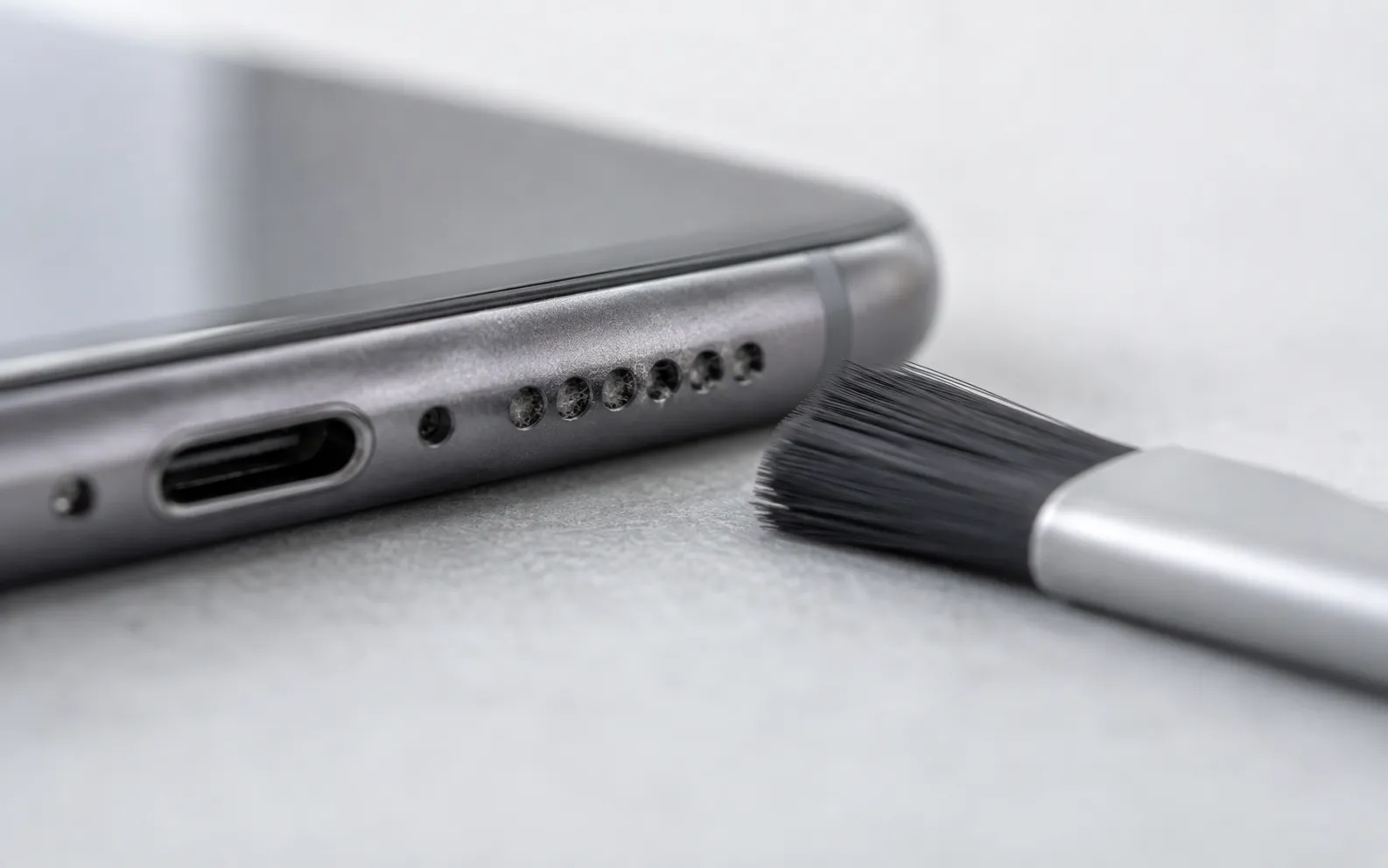
The bottom speaker grille collects lint from pockets and bags, and it happens gradually enough that you don’t notice the decline. A visibly grey, packed grille measurably reduces output.
Clean it with a soft, dry brush — a clean toothbrush works. Do not use a pin, and do not use compressed air; Apple advises against both, and you can push debris deeper or damage the mesh.
The quick way to confirm the speaker is the problem: play something and cup your hand around the bottom edge. If it gets noticeably louder, the sound is escaping fine and the grille isn’t fully blocked.
5. Test whether both speakers still work
Modern iPhones play stereo through the bottom speaker and the earpiece. If one of them has failed, everything sounds quiet and slightly off-centre, and it’s easy to mistake for a general volume problem.
The fastest check is a left/right test tone. Our sound test plays each channel separately in the browser so you can hear whether both sides are producing sound at the same level — no app required. If one channel is dead or clearly weaker, that’s hardware, and no setting will bring it back.
6. Restart, then update
Unglamorous, but audio routing is one of the areas where iOS genuinely does get stuck. A restart clears a stale route. If the problem started right after an update, check whether a newer one is available — audio regressions do happen and do get patched.
Where an app helps, and where it doesn’t
We build a volume booster, so here’s the honest boundary.
An app cannot raise the iOS system volume, make another app louder, or push your speaker past its physical maximum. Anything advertising a “200% system boost” on iPhone is describing something the platform does not permit. Past a certain point, more gain produces distortion, not loudness.
An app can amplify the audio it plays itself. That’s a real and useful thing when the source material is the problem — a podcast recorded at a low level, a voice memo from a noisy room, a film with whispered dialogue. Volume Booster plays your own files with gain, a bass dial and a 6-band equalizer applied, so a quiet recording comes out loud and intelligible.
If your phone is quiet because of a setting or a blocked grille, fix that first. No app substitutes for it.
The order to work through
- Control Centre → confirm audio output is iPhone
- Headphone Safety → Reduce Loud Sounds off (if you accept the trade-off)
- Settings → Music → Volume Limit off, Sound Check off
- Brush the bottom speaker grille
- Run a left/right speaker test to confirm both channels work
- Restart the phone; check for an iOS update
- Still quiet at maximum? Book a Genius Bar appointment — a failing speaker sounds quiet on speakerphone too, which confirms it quickly
Related: if it is specifically the alarm that is faint while music sounds normal, why is my iPhone alarm so quiet walks through the nine alarm-only causes.
Frequently asked questions
How to Increase Bass on AirPods (What Works and What Doesn't)
How to increase bass on AirPods, which have no bass setting: the right EQ in the right app, ear tip fit, noise cancelling, and what no iPhone app can do.
How to Make Android Louder: Settings, Limits and What Works
How to make Android louder: four volume streams, a safe-volume cap, a Bluetooth quirk and, unlike iPhone, real system-wide boosters. Biggest gains first.
Make your music louder than ever.
Boost the volume, add deep bass, and fine-tune every track with a 6-band equalizer — all in one simple app.
Download the App