
How to Make Android Louder: Settings, Limits and What Works
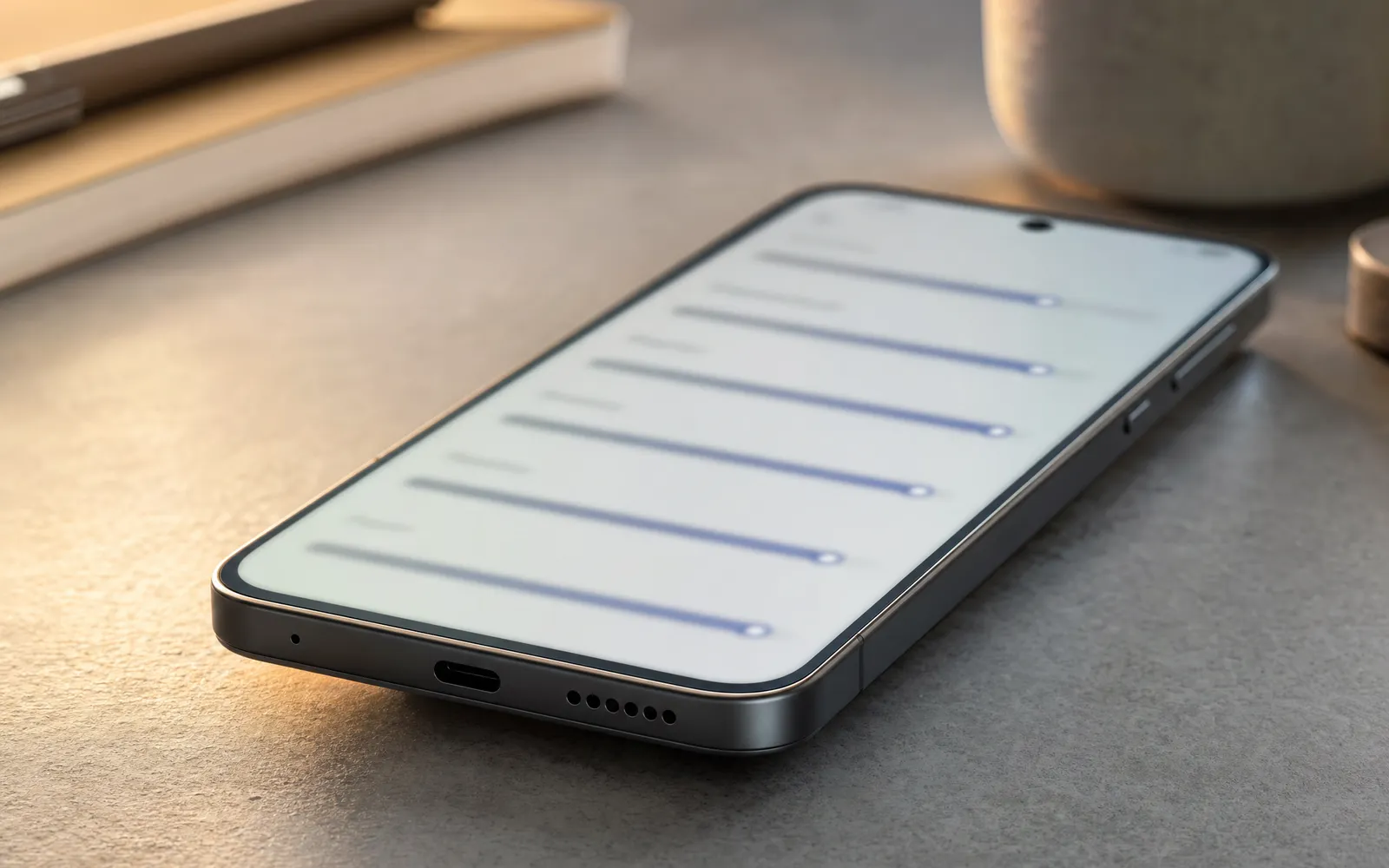
Android has four volumes, and the buttons move one
The first thing that trips people up. Android keeps media, ring, alarm and notification as separate streams, each with its own level. The side buttons adjust whichever stream is active, and when nothing is playing that’s usually ring, not media. So you press volume up at the lock screen, see a full bar, and the music is still quiet.
Press a volume button and tap the small settings icon (or the three dots, or the arrow) on the slider that appears, and you get all four. Set media to maximum there. On Samsung it’s Settings → Sounds and vibration → Volume.
The media volume limit
Settings → Sounds and vibration → Volume → Media volume limit on Samsung; Volume limiter or Sound → Advanced on other phones. Some phones ship with it on, or it gets turned on during setup, and it caps the media stream a fair way below maximum.
Related: the safe volume warning. When you push headphone volume past a regulatory threshold, around 60 percent, Android warns you and on many phones resets to that level after a period or a reconnect. In most regions you can confirm past it. It exists because 85 dB is where hearing risk begins, which is a volume booster safe explains, so treat that as information rather than an obstacle.
The Bluetooth quirk: absolute volume
Android normally links the phone’s volume with the connected Bluetooth device’s own volume, so one slider moves both. That’s absolute volume, and when it works, it’s what you want.
When it doesn’t, a speaker or headphones stay quiet no matter what the phone says. The fix is in Developer options → Disable absolute volume. (Enable Developer options by tapping the build number seven times in About phone.) With it disabled, the phone’s slider and the device’s own buttons are independent, and you set both to maximum.
Turn off normalisation in the app
Same as on every platform. Spotify’s Volume level (Playback settings, set it to Loud), YouTube Music’s Normalize volume, Apple Music’s Sound Check. They keep tracks even by turning loud ones down. How to make your music louder has the setting in each app; on Android, also check the app’s own equalizer, which often carries a preamp.
Use the phone’s own sound settings
Every Android manufacturer ships some sound processing. It’s worth turning on and comparing, because a few of these add real perceived loudness.
- Samsung: Settings → Sounds and vibration → Sound quality and effects. Dolby Atmos (adds compression and EQ; usually a few dB louder-feeling), an Equalizer with a preamp-like effect, and Adapt Sound, which tunes the output to a quick hearing test and can lift the frequencies you hear least.
- Pixel: Settings → Sound & vibration → Adaptive Sound, which adjusts to the room. Pixels also support Google’s Sound Amplifier accessibility app, which boosts and filters audio for headphones in real time.
- Xiaomi, OnePlus, Oppo and others: a sound effects or Dolby menu under Sound settings, usually with a “loud” or “outdoor” mode that cuts bass and pushes the midrange so the speaker carries further.
An equalizer is the honest tool in all of these. A small lift around 2–4 kHz makes a phone louder to the ear at almost no headroom cost, and cutting the 60 Hz band frees headroom the speaker was wasting on bass it can’t produce. Best EQ settings for bass explains the trade-off.
The physical stuff
Same as on any phone, and worth two minutes because it’s free.
Clean the grille. Pocket lint fills the speaker holes over months and muffles the speaker gradually. Case off, soft dry brush across the grille. Never liquid, never a pin.
Case off, compare. A case that covers part of the grille costs real decibels.
Hard surface, facing you. A phone on a duvet loses much of its sound; on a table against a wall it reflects back to you. How to make your speaker louder has the placement rules.
System-wide boosters: the Android difference
Here’s where Android genuinely parts company with iPhone.
Android exposes an audio effects framework that an app, with the right permission, can attach to the phone’s global output mix. One of the built-in effects is a loudness enhancer, and that is what real Android booster apps use. The result is a gain applied to everything: your music app, YouTube, a video call’s audio, a game. It’s the “made everything louder” that Android reviews describe, and it’s true.
On iPhone none of that exists. iOS gives no app access to another app’s audio, so a booster there can only play its own files louder. How to make your phone louder sets the two platforms side by side.
Three honest limits on the Android version:
- The speaker is still the ceiling. A booster adds gain to the signal; it doesn’t change how loud the driver can go. Past the ceiling you get distortion, and the booster makes the distortion louder.
- Some outputs are exempt. Bluetooth devices with absolute volume may not follow it. Phone calls use a separate path. Alarms and ringtones aren’t media, so they’re not affected.
- The manufacturer may interfere. Some phones reset or ignore global effects, and aggressive battery management can kill the booster’s background service.
Volume booster for Android: what works goes through how to tell a real one from a fake, how much gain is usable, and what to expect from ours. Volume Booster is on Google Play if you want to run the one-minute test on it.
In order
| Step | Where | Gains |
|---|---|---|
| Media stream to max | Volume slider → expand | Often the whole problem |
| Media volume limit off | Sounds and vibration → Volume | The cap most people don’t know is on |
| Absolute volume | Developer options | Quiet Bluetooth devices |
| Normalisation off | Music app settings | Loud tracks at their real level |
| Sound effects / EQ | Sound quality and effects | A few dB of perceived level |
| Grille, case, placement | — | Free, physical |
| System-wide booster | An app | Real gain, up to the speaker’s limit |
Work down the list; most Android phones are fixed by row two. The last row is the one iPhone owners don’t get, and it’s the reason a booster on Android is a different kind of app.
Frequently asked questions
How to Increase Bass on AirPods (What Works and What Doesn't)
How to increase bass on AirPods, which have no bass setting: the right EQ in the right app, ear tip fit, noise cancelling, and what no iPhone app can do.
Volume Booster for Android: What Works and What's Fake
A volume booster for Android can genuinely make everything louder, which is why the category is full of fakes. How real ones work, and a one-minute test.
Make your music louder than ever.
Boost the volume, add deep bass, and fine-tune every track with a 6-band equalizer — all in one simple app.
Download the App