
Volume Booster for Android: What Works and What's Fake
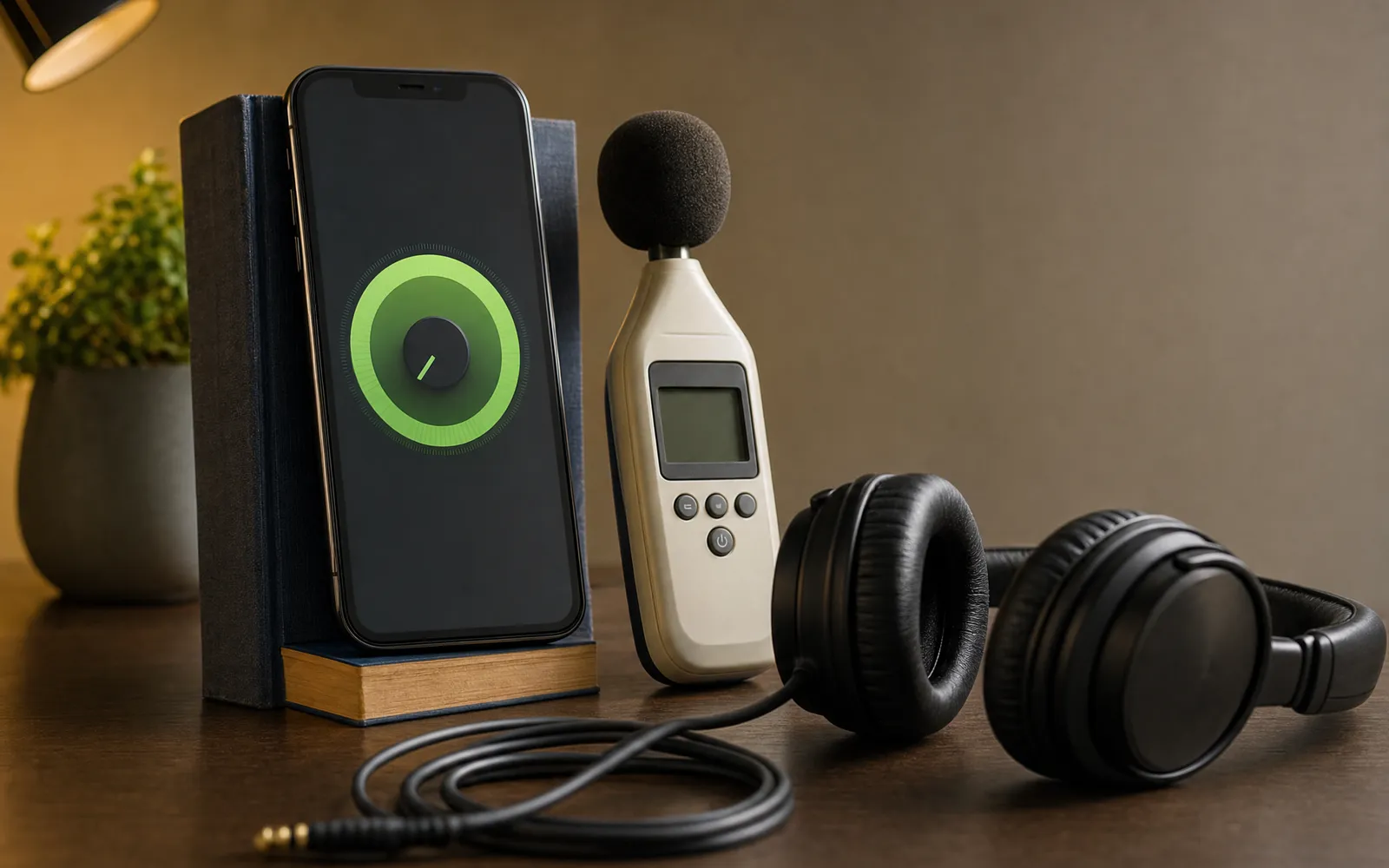
Why Android is different
Most of this site is about iPhone, and on iPhone the honest line is short: no app can process another app’s audio, so a booster can only play its own files louder. That’s a platform rule, not a limitation of any particular app.
Android draws the line somewhere else. It has an audio effects framework, and with the right permission an app can attach an effect to the phone’s global output mix: the point where every app’s audio has been combined and is about to leave for the speaker or headphones. One of the effects Android ships is a loudness enhancer, a gain stage. Attach it there and everything the phone plays goes through it.
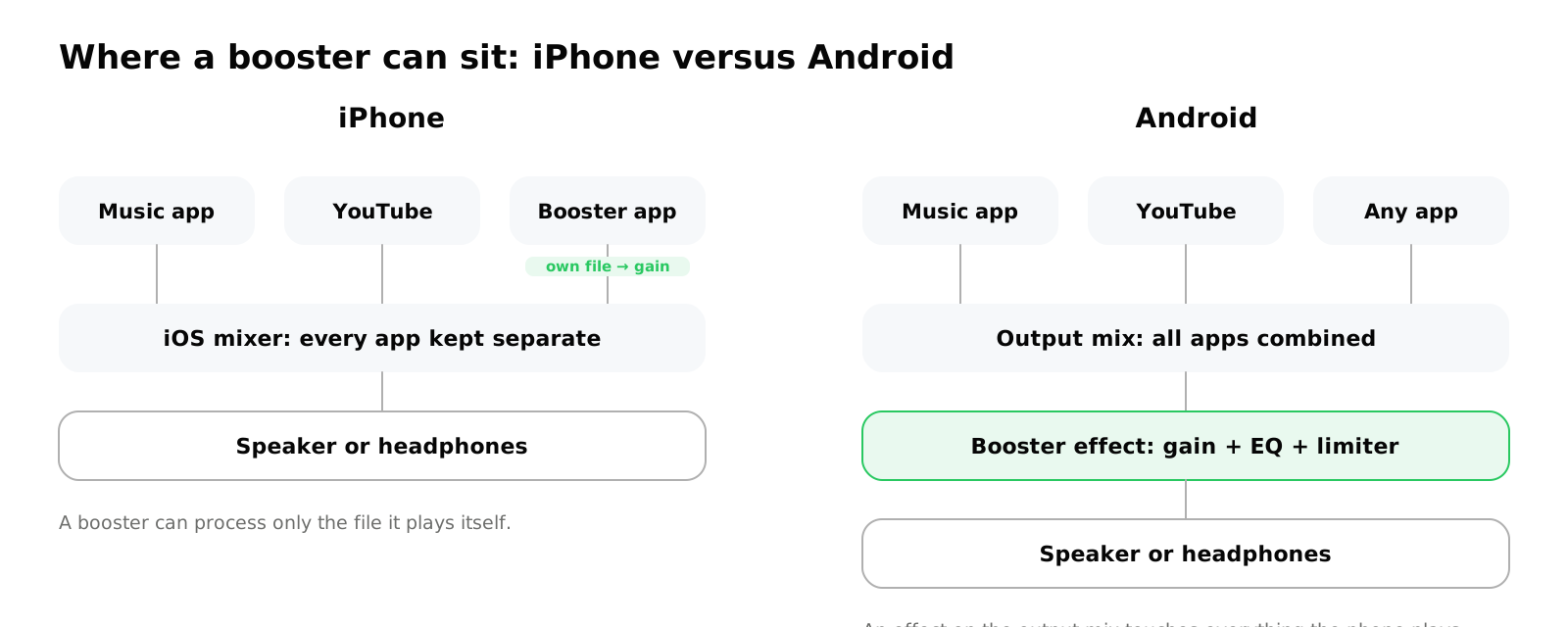
That’s why the Android reviews that say “it made YouTube louder” are telling the truth, and why the iPhone reviews that say the same thing aren’t. How to make your phone louder sets the platforms side by side; this post is about what to expect once you’re on the side where it works.
What a real one does
A booster that’s built properly on Android does four things:
- Asks for the audio settings permission, because that’s what attaching to the output requires. No permission prompt, no real boost.
- Attaches a gain effect to the output mix, so it applies to every app, not just its own player.
- Keeps a foreground service running, with a persistent notification, so Android doesn’t kill the effect when you switch apps. That notification is the tell that the booster is doing something real, and it’s why real boosters can’t be silent about running.
- Limits the result, so the extra gain is caught before it clips. Without this step, a booster is just a way to make distortion louder.
Some also add an equalizer on the same output, which is the more useful half for a phone speaker: cutting the bass it can’t reproduce frees headroom, and lifting 2–4 kHz adds perceived loudness for free.
The one-minute test
Because a booster’s screenshot looks the same whether or not it works.
- Play music in your usual app. Set the phone’s media volume to maximum.
- Open the booster. Raise its dial.
- Listen. Does the music in the other app get louder?
A real booster: yes, clearly, and it keeps working when you switch back to the music app.
A fake: nothing happens, or the phone’s own media slider moves (which you’d already set to maximum), or it plays louder only inside the booster’s own screen. Fakes also tend to share a look: a slider marked to 500 percent, a full-screen ad every other tap, no limiter so the top of the dial is pure crackle, and no persistent notification because nothing is actually running.
For a more precise check, put a sound level meter app on a second phone, or a real meter if you have one, at a fixed distance and read the number before and after. A real booster on a quiet track moves it; on an already loud track it moves it a little and then the distortion starts.
How much gain is actually usable
This is where the marketing numbers fall apart, and the honest number is more useful.
The speaker has a fixed maximum output. A booster doesn’t raise it; it brings the signal closer to it. So the usable gain depends entirely on how far below the ceiling the material was:
- A quiet recording, a low YouTube upload, a voice memo: a lot. This is the case boosters are for, and 20–30 percent of extra gain, sometimes more, comes through cleanly.
- A modern, loudly mastered track: almost none. It’s already at the ceiling. Add gain and the peaks clip immediately.
- Headphones and Bluetooth speakers: usually more headroom than the phone’s own speaker, so the boost goes further before it strains.
Apps advertising 200 or 500 percent are describing a slider. What reaches your ear is capped by the driver, and the number that matters is the one where it starts to crackle. Turn it up until it does, then back off a step. That’s the setting.
Where even a real booster stops
Four places, and knowing them saves an uninstall review.
Bluetooth with absolute volume. The phone and the device share one volume, and some devices apply their own level control after the phone’s effect, clipping or ignoring the boost. Disabling absolute volume in Developer options separates the two and usually fixes it. How to make Android louder walks through it.
Calls, alarms, ringtones. Voice calls travel a separate path, and alarms and ringtones aren’t media. A booster on the media output doesn’t touch them, and the ones that claim to are describing something they can’t do. The heavy sleeper’s alarm guide has what actually works for alarms.
Apps with their own effects. A music app that runs its own equalizer session may bypass or fight a global effect. Turn one of the two off.
The manufacturer. Some phones reset global effects when the screen locks, and aggressive battery optimisation kills background services. Exempting the booster from battery optimisation fixes most of it; a few phones simply don’t cooperate.
Hearing, because it’s the risk that’s real
The hardware is protected: a phone’s amplifier models the speaker’s heat and travel and pulls back first, and headphones get milliwatts. Is a volume booster safe? has the physics. Your hearing has no such protection.
A system-wide boost on headphones is the one configuration that can take you past 85 dB without noticing, because everything is louder and the phone’s own slider still says the same thing. Use the booster to bring quiet material up to a normal level, not to make loud material louder, and keep an eye on the total. Is a volume booster safe explains the 85 dB rule and why every 3 dB halves the time.
What we built
Volume Booster for Android is built the way the section above describes: a gain effect on the system output with a 6-band equalizer and bass control on the same path, a foreground service with a persistent notification so it stays active, and a limiter after the gain so the extra level arrives as volume rather than crackle. Turn on Device boost and it applies to every app that plays media; a Quick Settings tile switches it on and off from the notification shade. That’s the part we can’t offer on iPhone, and we say so there.
Two things it doesn’t do, same as any real booster: it doesn’t touch calls, alarms or ringtones, and it can’t move the speaker’s ceiling. It runs on Android 9 and later, and it’s on Google Play.
Our dial is labelled up to 200%, and that number is the position of the slider, not a measurement: there’s no standard that would make “200%” mean a fixed amount of loudness. What reaches your ear is set by the speaker’s ceiling, and the limiter stops the dial from pushing past it into crackle.
In short
| Real booster | Fake booster | |
|---|---|---|
| Other apps get louder | Yes | No |
| Asks for audio settings permission | Yes | Often not |
| Persistent notification while active | Yes | No |
| Limiter | Yes | No, the top of the dial crackles |
| Headline number | None, or a modest one | 200–500% |
| Works on calls / alarms | No, and says so | Claims to |
Run the one-minute test before trusting any of them, including ours.
Frequently asked questions
How to Increase Bass on AirPods (What Works and What Doesn't)
How to increase bass on AirPods, which have no bass setting: the right EQ in the right app, ear tip fit, noise cancelling, and what no iPhone app can do.
How to Make Android Louder: Settings, Limits and What Works
How to make Android louder: four volume streams, a safe-volume cap, a Bluetooth quirk and, unlike iPhone, real system-wide boosters. Biggest gains first.
Make your music louder than ever.
Boost the volume, add deep bass, and fine-tune every track with a 6-band equalizer — all in one simple app.
Download the App