
iPhone Volume Not Working? No Sound at All, Fixed
First: is it no sound, or quiet sound?
This page is about complete silence. If audio plays but is too faint, that’s a different set of causes — go to iPhone volume low instead, which covers volume limits, Sound Check and a lint-blocked grille.
Still here? Then work through this in order. It’s arranged by how often each cause is the answer, not by how technical it sounds.
1. Find out where your audio is going
Open Control Centre and look at the audio output picker in the corner of the playback tile.
If it shows AirPods, a car, a TV, a speaker in another room — that’s your answer, and the phone is working perfectly. iOS holds a Bluetooth route far more stubbornly than people expect, and a device that’s technically in range but sitting in a drawer will happily keep receiving your audio.
Tap the picker and select iPhone.
2. The charging port lies sometimes
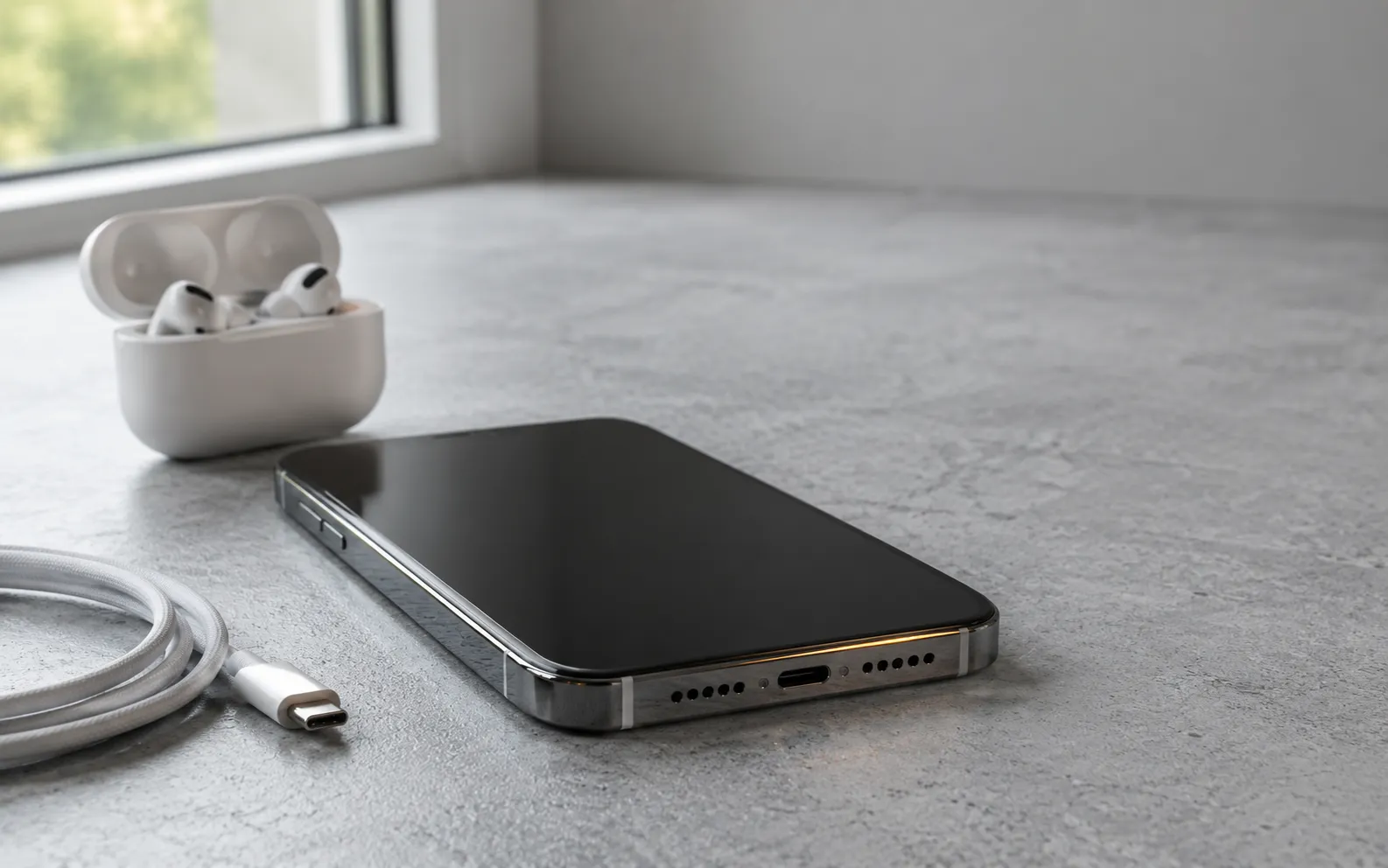
Moisture or pocket lint in the port can make iOS believe a wired accessory is connected. It then routes audio to that accessory, which does not exist, and the speaker stays silent.
Tell-tale sign: the output picker offers a wired option when nothing is plugged in.
What to do — dry the port completely, and give it time; hours, not minutes, if the phone has been anywhere damp. Inspect it in good light. Clean gently with a soft dry brush. Do not poke it with anything metal.
3. Confirm the speaker in ten seconds
Before going further, establish whether the speaker itself works.
Ask Siri something, or start a call and switch to speakerphone. Both drive the built-in speaker directly and bypass most of the routing layer.
- Siri and speakerphone are audible → the speaker is fine. Your problem is routing or a setting, so go back to steps 1 and 2 and be thorough.
- Nothing from either → that points at hardware or a system-level fault. Keep going, but adjust your expectations.
This one test saves a lot of wasted troubleshooting.
4. Check the right volume
iOS keeps several volumes separately, and the side buttons control whichever one is currently active.
Press volume up while audio is genuinely playing. Pressing it on the home screen adjusts the ringer instead, which is why people report “I turned it all the way up and nothing happened”.
A useful diagnostic: if the phone still rings for calls, the speaker and ringer are both fine and you’re looking at a media volume problem, not a broken phone.
5. Silent mode and Focus
The Ring/Silent switch silences the ringer and most notifications. It does not silence media playback, and it does not silence Clock alarms.
So: if music plays but calls don’t ring, check the switch and your Focus modes. If nothing plays at all, silent mode isn’t your cause — move on.
6. Check inside the app
Some apps keep their own mute state, independently of the system. Video apps in particular often start muted by design, and social apps remember that you muted them three weeks ago.
Look for a speaker icon in the app’s own playback controls before concluding the phone is at fault.
7. Restart, then force restart
Audio routing genuinely does get stuck in iOS. A normal restart clears a stale route and fixes a meaningful share of cases.
If that doesn’t do it, a force restart is the next step. If the problem appeared immediately after an update, check whether a newer version is available — audio regressions happen and get patched.
8. Test both channels
Modern iPhones play stereo through the bottom speaker and the earpiece. If one has failed, sound can be so lopsided and thin that it reads as “not working”.
Our sound test plays each channel separately in the browser, so you can hear whether both sides produce sound. It needs no app and no install. If one channel is silent, that’s hardware — book a Genius Bar appointment, and mention exactly which side.
Where an app fits — and doesn’t
We make a volume booster, and it is worth being direct: if you have no sound at all, no app will fix it. The cause is routing, a setting, or hardware, and an app can change none of those.
A booster processes the audio it plays itself. That helps when sound is coming out but the recording is too quiet — a podcast mastered low, a voice memo from a noisy room. It cannot recover audio that iOS is sending to a Bluetooth speaker in another room. We wrote up the boundary in do volume booster apps actually work.
The order to work through
- Control Centre → set audio output to iPhone
- Inspect and dry the charging port
- Siri or speakerphone → confirm the speaker works at all
- Press volume up while audio is playing
- Check the Ring/Silent switch and Focus modes
- Check the app’s own mute control
- Restart, then force restart; check for an iOS update
- Run a left/right speaker test to find a dead channel
If Siri is silent, speakerphone is silent, and a restart changed nothing, stop troubleshooting and get it looked at. At that point it’s hardware, and the useful thing you can bring to the appointment is exactly which of these tests failed.
Frequently asked questions
How to Increase Bass on AirPods (What Works and What Doesn't)
How to increase bass on AirPods, which have no bass setting: the right EQ in the right app, ear tip fit, noise cancelling, and what no iPhone app can do.
How to Make Android Louder: Settings, Limits and What Works
How to make Android louder: four volume streams, a safe-volume cap, a Bluetooth quirk and, unlike iPhone, real system-wide boosters. Biggest gains first.
Make your music louder than ever.
Boost the volume, add deep bass, and fine-tune every track with a 6-band equalizer — all in one simple app.
Download the App